
If there’s one piece of advice I can give to anyone it’s to use a password manager. It’s a change that can seem daunting, but is very doable.
What is a password manager
Simply, it’s a platform that stores our passwords or other sensitive items such as files or even credit card details. And yes, they store passkeys as well so this is still a relevant tool for the long haul.
Why use a dedicated password manager
Password reuse, using the same password across multiple online services, is a practice that eventually will lead to a criminal getting hold of our passwords and with access to multiple services from a single breach. Password managers allow us to remember one password and save all of our other passwords, which will be a long string of random characters that are unique to each platform.
Many rely on their browser to save passwords for them or a file on the computer desktop named Passwords, but these are highly susceptible to theft by malware or social engineering and often lead to a fragmented/confusing experience.
A dedicated password manager keeps the keys in our control in an encrypted manner reducing the probability of a criminal stealing the password data significantly.
The downside - if we lose access to the password manager there is no recovery option. But don’t fear, below we review a method to prevent just that.
What are some services to consider
No free tier, Individual plan ($48/yr) is fully featured and recognized as being very easy to use
Supports sharing of passwords with people not on 1Password
Family plan option at $72/yr
Highly featured free tier
Paid tier ($20/yr)
Supports Emergency Access, where you can designate a trusted person, who also has a Bitwarden account, to be granted access to your passwords upon request after a waiting period
Family plan option at $48/yr
Free tier is essentially a very limited trial
Individual plan ($40/yr) is fully featured
Family plan option at $85/yr
Which to choose? It’s hard to argue against Bitwarden’s cost, but 1Password may be better for those who appreciate an easier to use design. Keeper is more commonly used with businesses with features for teams.
There are more options and this is an area where diversity is a good thing. Feel free to spend some time on a few different sites to see what feels best, the steps below will be the same regardless of this choice.
What are some services to avoid
Web browser managers like Microsoft Edge, Google Chrome, and Firefox
Apple Keychain / Safari Auto-fill - While a step up from browsers, any service that can recover your passwords for you is susceptible to social engineering attacks. Additionally, Keychain is targeted in similar malware attacks as browsers.
LastPass - A popular password manager that has suffered multiple significant security breaches.
How to set up a Password Manager
A) The Pass Phrase
After you have chosen a service create an account. In doing this you will need to create a Master Password.
Or in this case, we will use a Pass Phrase, which is the same thing as a password except it is a handful of words without any special characters.
I highly recommend this password generator from XKCD which will generate random pass phrases. Their comic does a great job of explaining why:
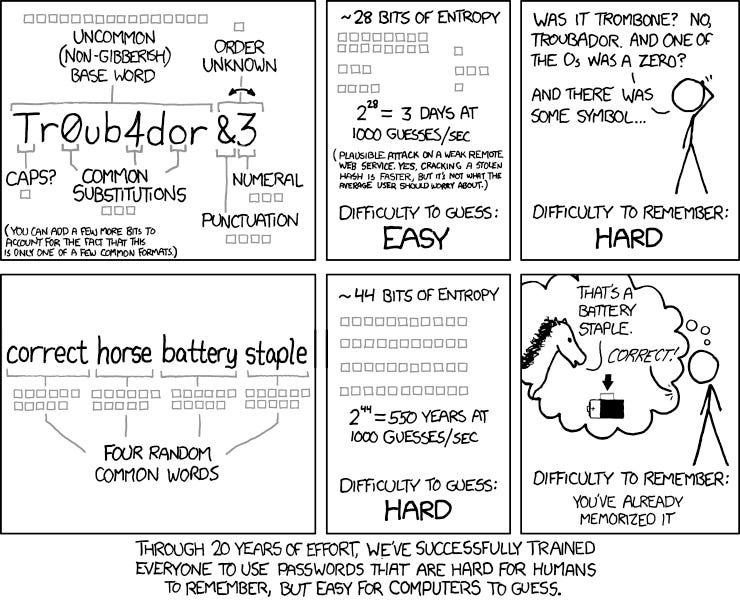
The key is to NOT use words that are associated with ourselves, such as pet names or street addresses. Keep away from anything that would be a common security question or guessable from social media. Hence the value in the generator.
Feel free to generate multiple pass phrases until you find one you like. And it’s ok to choose 3 of the words instead of 4.
When we have chosen our passphrase we need to store it somewhere safe, such as written down at home.
Note that if we lose this password our password manager account is not recoverable. This is a key security feature to prevent criminals from accessing this information. Don’t worry - by using the above pass phrase technique we will remember it much sooner than we realize.
Then we sign up with the service using this password. Don’t forget to install the browser extension (if you use a desktop/laptop) and the app on our phone.
See, already getting password memorization reps in.
B) The Migration
There are two options in migrating from using the same password or the password file. The right option simply is determined by what works best for us and it’s likely that we will mix the two.
I) Do it all at once
II) Do it over time
Option I consists of sitting down for an hour or two to log onto each website to change your password, saving the new password in the password manager.
Option II is to preform the password change and save process as you visit each site during normal use when you see that it’s not saved in your password manager.
Both options follow the same core workflow below. Note that if following Option I this will be easiest on a laptop/desktop computer vs a phone.
Step 1) Visit the site and log in. Navigate to the Change Password setting and start the password change process.
Step 2) When prompted for your new password open your password manager, ideally by the browser extension, and select new login. Enter your Username and use the generate button to generate a unique password.
Different sites will have varying password requirements to follow. When possible choose a password length of 20 or more characters with a mix of upper case letters, lowercase letters, numbers, and symbols.
Step 3) If using the browser extension often the website URI will autofill. (URI is the technical term for a website URL). If it is not auto-filled be sure to populate it if we are saving a password for a website. A proper URI will look like https://example.com/. It’s ok if there’s a bunch of words after the /.
Step 4) Save the password manager entry then paste the password in the site to complete the change process.
This website is now stored in your password manager. We can test it by logging out and signing back in. The password can be accessed by copy/paste from the phone app or browser extension. And depending on the device we use the service may autofill the username and password when it recognizes the URI.
C) Disable Default Password Managers
Recall how we recommended against default password managers like the web browser? Well, they won’t be happy and will still insist to be used. Here’s how to disable that in popular platforms
Google Chrome: Copy and paste the following into Chrome chrome://password-manager/settings and toggle off the pictured settings:

Microsoft Edge: Copy and paste the following into Edge edge://settings/autofill/passwords/settings and toggle off the pictured setting:

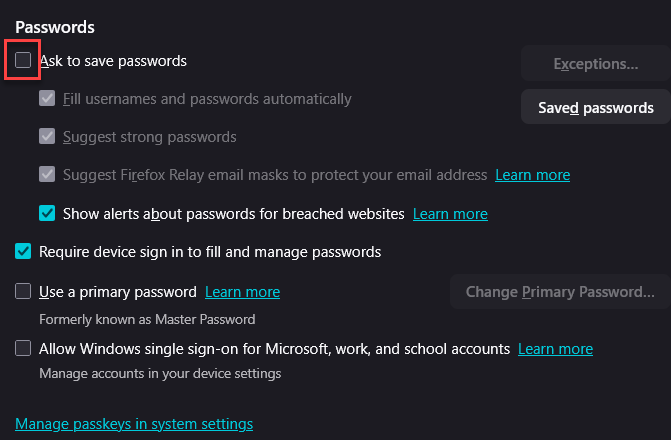
Firefox: Copy and paste the following into Firefox about:preferences#privacy and toggle off the pictured settings (scroll down some):
Android Phone: Open Settings and search password. Select Passwords, passkeys & accounts. Then edit the Preferred Service from Google to the app we installed.
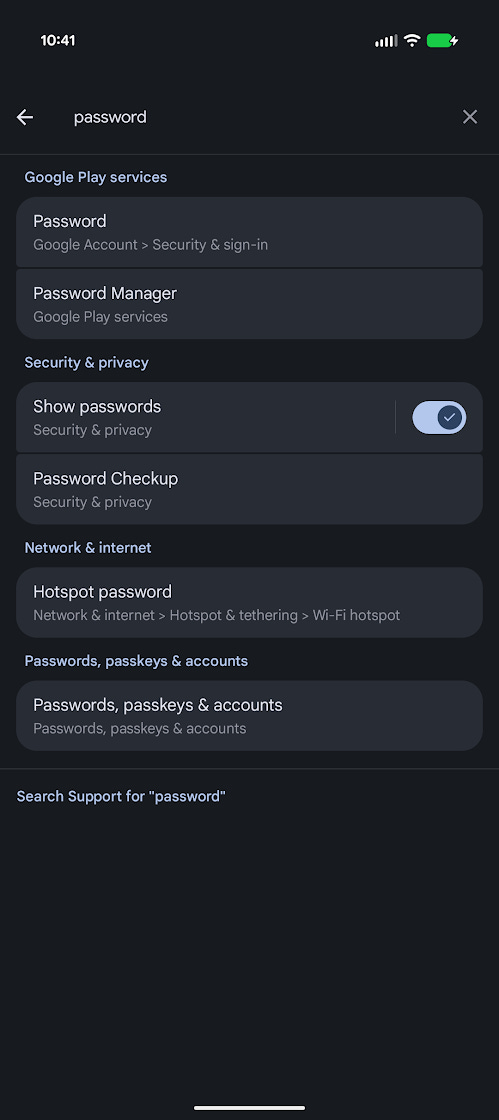
*Note - due to the number of different versions of Android phones this may vary slightly. The shown screenshot is from a Google Pixel phone.
Apple Devices: This blog post covers the steps well. I’m working on getting better Apple guides directly in this post - please message me if this would be valuable for you.
Bonus Step - Set up Multi-Factor Authentication
What is MFA?
The practice of logging in with a password followed by a second step, such as typing in a code from an App like Google Authenticator. If our password is ever compromised this adds an additional verification, requiring our physical phone, making it exponentially harder for a criminal to access our data.
It’s a common trick of a criminal to ask for an MFA code. Never share this code with anyone and only type it directly into the service. Additionally, avoid using Text Messaging as MFA when possible.
What Are Some Services to Consider?
Most often this service will be used from a mobile phone.
Google Authenticator can be used on Android and Apple devices.
Microsoft Authenticator is another good option for Android and Apple.
For those aligned to Apple, there’s also Apple’s Authenticator.
How to set up MFA
When on the paid password manager plans they can also be used as an authenticator, just not to access the password manager itself. A common set up would be to have an Authenticator app just to use for access to the Password Manager, then save MFA codes for sites in the password manager.
For now, let’s just focus on setting up MFA to the password manager.
Most offerings have helpful guides of how to do this. Here’s the links for Bitwarden and 1Password.
Essentially, we need to download an authenticator app, navigate to the proper setting in the password manager to setup MFA, scan the QR code, and enter the code from our phone.
From now on we will need to enter a password and MFA code to sign in, which is a small trade of convenience for a major security upgrade.
Congratulations! Accomplishing this is a major improvement in our online security. Let’s be sure each password is unique and that our one password to remember is stored in a safe location.